SquadBase user guide
Testing to prescription, in plain words
1Getting started
Sign up, look around the sample squad, then bring in your own. SquadBase is built for minor (16–17) to adult squads; you decide who you test and train.
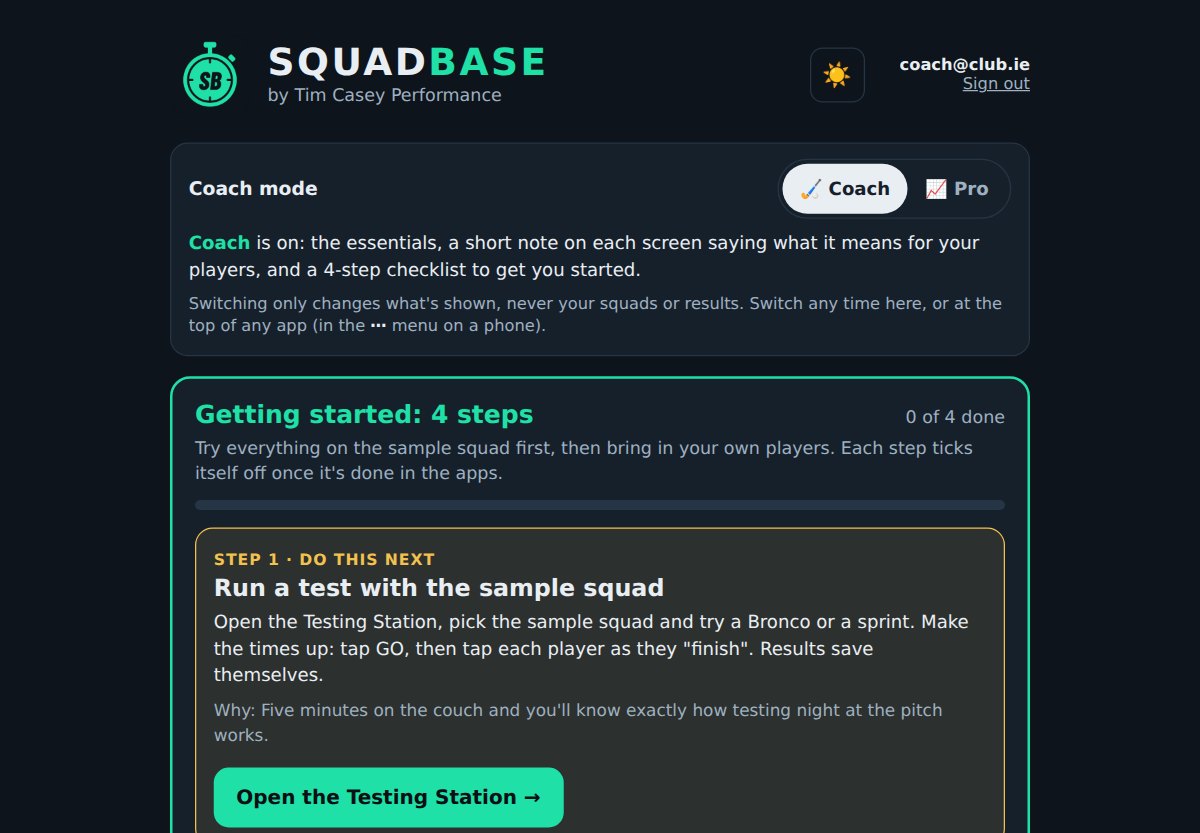
- Create your account with your email and a password, then tap the link in the email we send you.
- Coach mode: Coach or Pro? The first time you open SquadBase it asks which sounds like you. Coach shows the essentials, a 4-step "Getting started" checklist (try everything on the sample squad, then bring in your own players) on the home screen and a short note in each app on what it does for your players; the extra tabs wait behind More. Pro shows every test, setting and option. Switch any time under Coach mode on the home screen or at the top of any app: nothing you've entered changes.
- Dark or light? SquadBase is dark by default. On a bright day at the pitch, switch to Light: black text on white is far easier to read in the sun. Tap ☀️ at the top right of the home screen or any app (in an app on a phone it's in the ⋯ menu, which also has Match my phone to follow your phone's own dark-mode setting). Every app changes together.
- Have a look around. A Sample Squad (delete me) is added for you: 12 players and four testing days, so every chart and report has something in it. Open any app from the home screen and try it.
- Bring in your own players from a spreadsheet (section 3), or add them in Squad Dashboard.
- Run your first test with the Testing Station, then look at the results in Squad Dashboard.
When you're finished with the sample squad, delete it in Squad Dashboard.
2Which test should I use?
Two numbers drive the running: aerobic speed (MAS) and top speed (MSS).
| Test | Gives you | You need | Good for |
|---|---|---|---|
| Bronco (1200 m of shuttles: 20, 40 and 60 m out and back, five times) | MAS | Cones, the Run timer or a stopwatch, 60 m of grass | Most squads. Quick, everyone at once, on the pitch |
| Time trial (e.g. 1.2–2 km) | MAS | A measured loop and the Run timer (staggered starts) | Adult squads; straightforward and very repeatable |
| Beep test (run from the Testing Station) | MAS, plus the score itself | Cones 20 m apart and the phone's speaker | Big groups and indoor halls; the app plays the beeps and records each player as they drop out |
| 20 m fly (20 m build-up, then timed over 20 m) | MSS (top speed) | Timing gates if you have them; a stopwatch is less accurate | Speed sessions and short intervals |
- Pick one aerobic test and stick with it, so results compare from one testing day to the next.
- Retest every 6–8 weeks in pre-season, and two or three times across the season.
- No timing gates? That's fine: players without a top-speed test are set from MAS instead.
How to run the running tests
Cone layouts and step-by-step instructions. The same guides are in the Testing Station: tap How to run this test when you pick one of these tests.
Bronco (1200 m)
Equipment
- 4 cones per lane and a tape measure.
- The Run timer in this app (or a stopwatch).
- A helper for each lane to count reps.
Setup
- Cones at 0, 20, 40 and 60 m in a straight line.
- One lane per group, lanes about 3 m apart.
- Flat grass, players in boots.
How it runs
- One rep: out to 20 m and back, out to 40 m and back, out to 60 m and back (240 m).
- Five reps with no rest = 1200 m.
- The clock stops when the player crosses the start line at the end of the 5th rep.
- Each lane's group starts together. In the Run timer choose All together, tap GO as they set off, then tap each player as they cross the line. Run the next group the same way: anyone with a time already is left off.
No-rep
- A foot must touch each line. Turning short of a line doesn't count.
Tips
- A 10-minute warm-up first.
- The lane helper calls out the rep number each time a player passes the start line.
- MAS is worked out from the time for you.
Time trial
Equipment
- Cones for the loop and a tape measure or measuring wheel.
- Numbered bibs if you have them.
- The Run timer in this app.
Setup
- Measure a loop, for example 400 m around the pitch. 1200 m = 3 laps, 1600 m = 4, 2000 m = 5, 2400 m = 6.
- Cones on the inside line so nobody cuts corners.
- Mark one clear start and finish line.
How it runs: staggered starts
- Players go one at a time, every 10–15 seconds, in the order you set.
- One clock runs the whole time. Each player's time is their finish minus their own start, and the app works it out. No maths on the day.
- Example: player 2 sets off at 0:15 on the clock and crosses the line at 7:45, so their time is 7:30.
Why stagger the starts
- Players can't sit on someone else's pace.
- Finishes are spread out, so they're easy to record.
Using the Run timer
- Put players in the order you want: drag them, or use the sort buttons.
- Tap GO when the next player sets off. A countdown shows when the next one is due, with a buzz (and a beep if you turn it on). Names are never called out.
- Tap a player's tile when they cross the line. Made a mistake? Tap Undo within 10 seconds, or fix the time afterwards.
Tips
- Bibs make finishers easy to spot.
- Have a helper at the finish whose only job is tapping finishers.
- Tell players how many laps before they start.
T-test (10 m / 5 m)
Setup: metres
- Cone A is the start and finish. Cone B is 10 m straight ahead of A.
- Cones C and D are 5 m either side of B.
- The original test is in yards (9.14 m and 4.57 m). Always use the same layout so results compare over time.
Equipment
- 4 cones and a tape measure.
- Timing gates at A, or a stopwatch.
How it runs
- Sprint from A to B and touch B.
- Shuffle left to C and touch it.
- Shuffle right to D and touch it.
- Shuffle back to B and touch it.
- Backpedal through A.
No-rep
- Crossing feet, not facing forward the whole time, or missing a touch. Redo it after full rest.
Tips
- Two attempts with 2–3 minutes rest between them. The best one is kept.
3Bring in your data
Your players and old results from Google Sheets or Excel, in a few minutes.
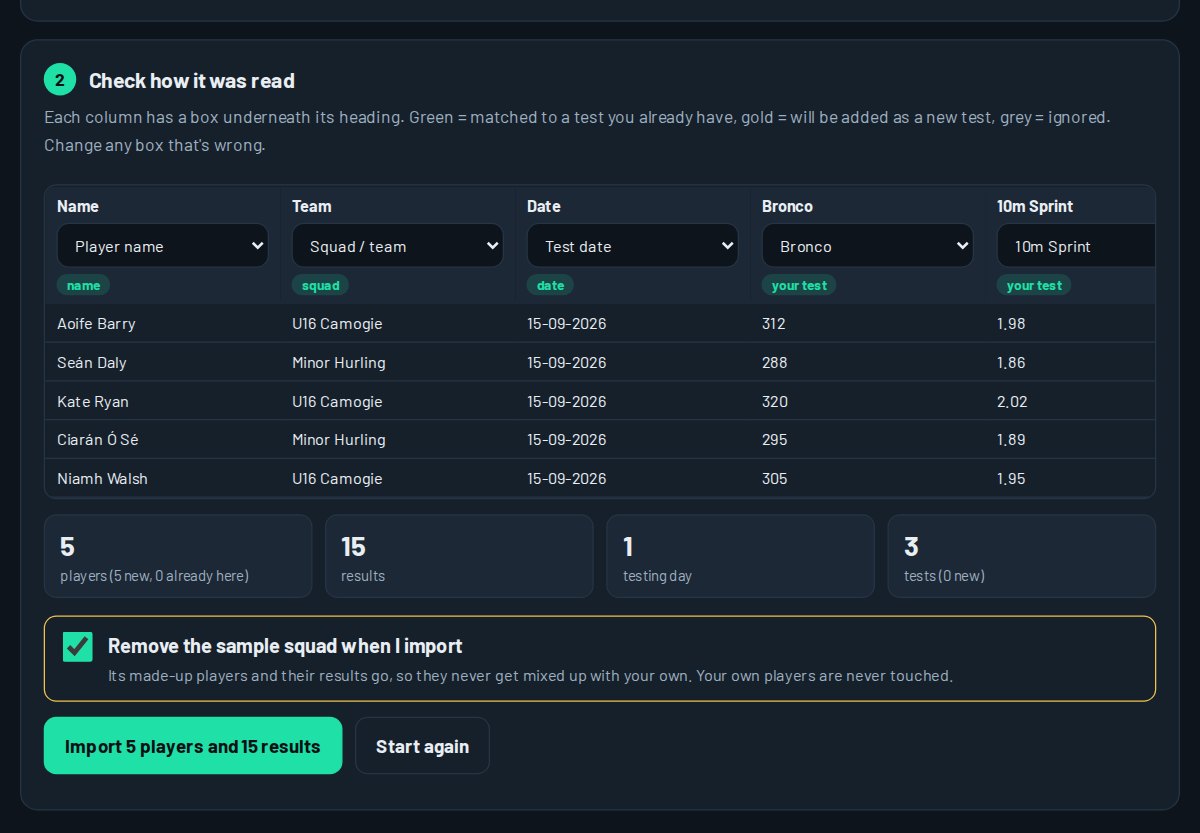
- From the home screen, tap ⬆ Bring in your existing data.
- Upload the file, or copy the cells in Google Sheets and paste them in.
- Check how it was read: each column is matched to a name, squad, date or test. Fix anything that's wrong before you import.
- Tap Import. Players already in SquadBase are matched, not added twice.
4Testing Station
Testing day on your phone, with helpers on theirs.
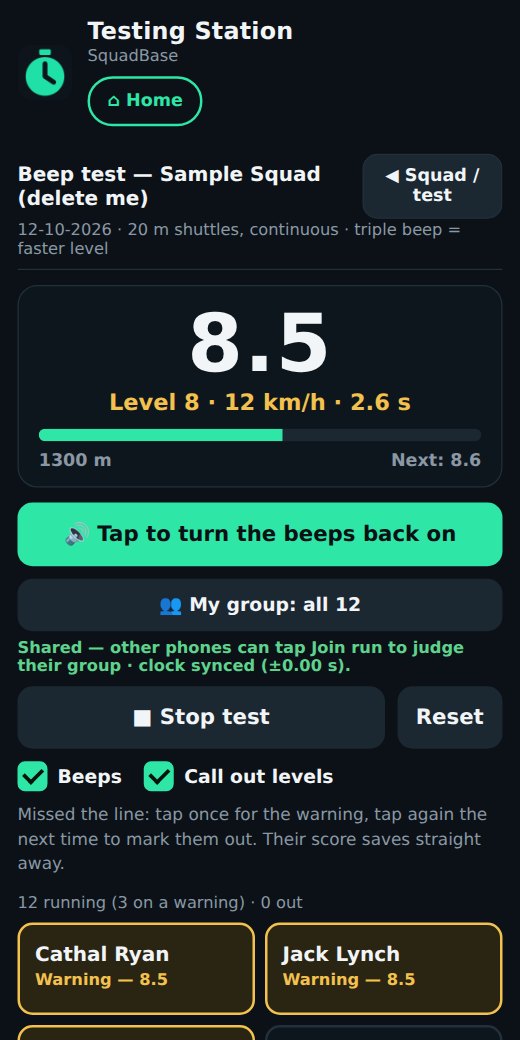
- Pick the squad and the test, then tap Start station.
- Tap a player and type their result. Mark anyone missing as Absent.
- For the beep test, tap ▶ Start test: the beeps play from the phone, and you tap each player out as they drop. Their score saves itself.
- For the Bronco or a time trial, type the time and the app works out MAS.
5Squad Dashboard
The whole squad on one screen.
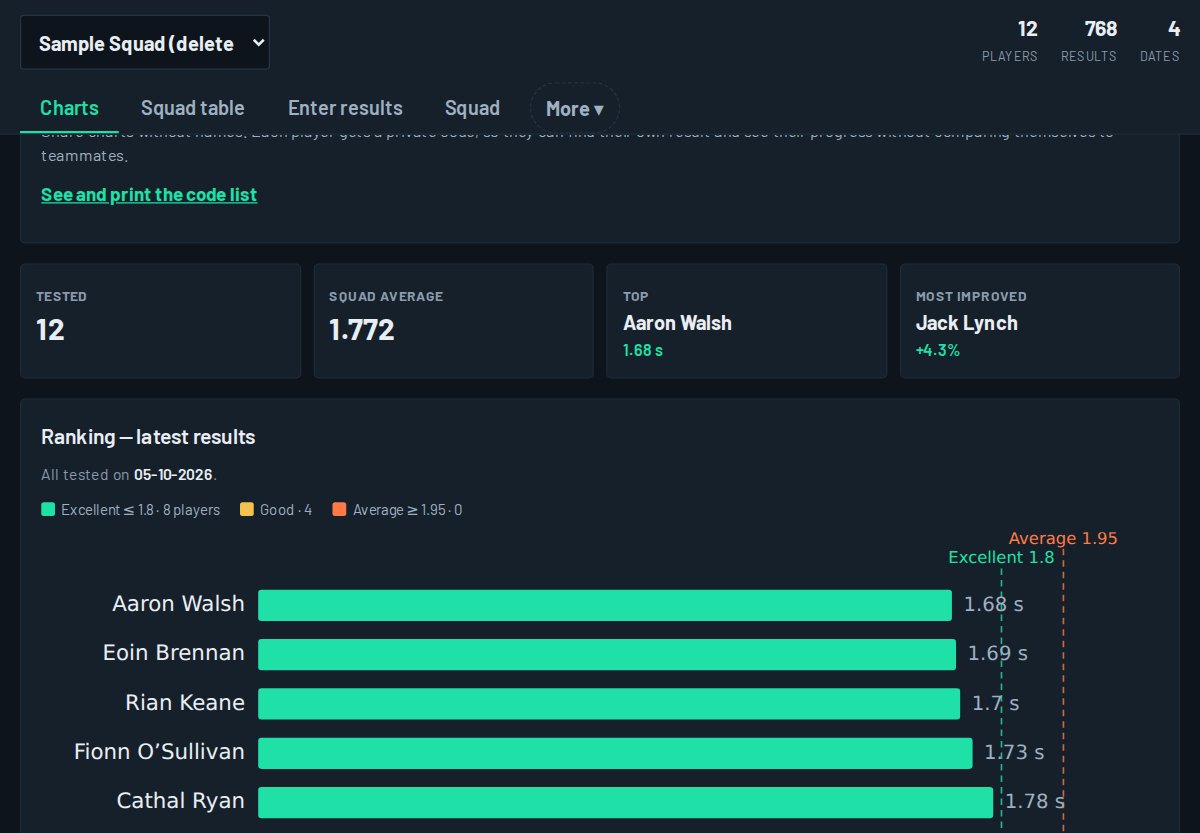
Tabs along the top:
- Charts and Squad table: pick a test and see everyone ranked, compared with last time and coloured against your standards.
- Enter results: type results in at a desk.
- Squad: add, edit or remove players and squads, and add your club crest.
- ASR profile: each player's MAS, top speed and the reserve between them.
- RAST: repeated-sprint results and fatigue.
- Standards: what counts as Excellent, Good or Average for minor (16–17) and adult squads. Use ours or set your own.
- Tests: add your own test (e.g. RSI or max pull-ups) with its unit, and whether higher or lower is better.
- Cloud & data: sync, import and export.
6Player Dashboard
One player's story, in one tap.
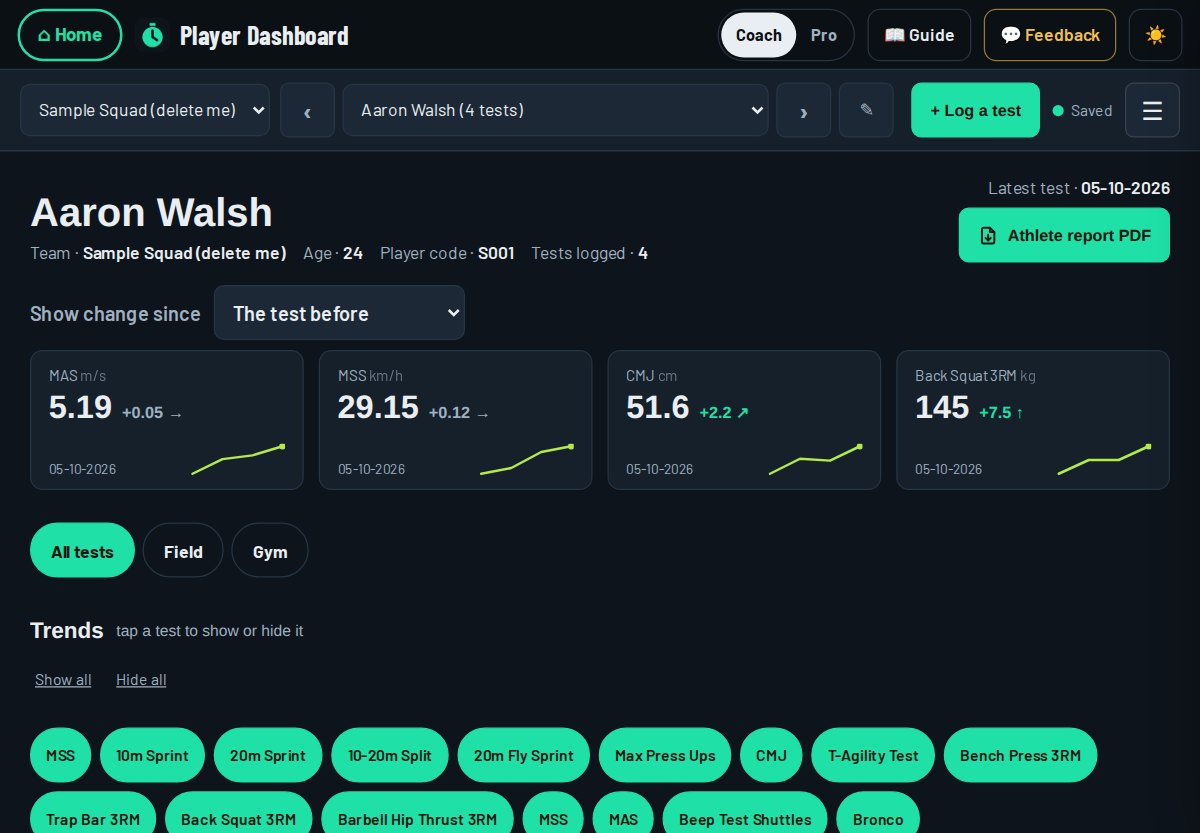
- Choose a player; step through the squad with the arrows.
- The tiles at the top show their key tests, with the change since last time: ↑ Better, ↗ Slight gain, → About the same, ↘ Slight drop or ↓ Down.
- Trend charts show every test over time, with the squad average alongside.
- Athlete report PDF makes a clean report to give the player or a parent.
↑ Better: real progress. ↗ Slight gain: moving the right way, but not yet bigger than the wobble; keep going and retest. → About the same: holding steady, and that's fine. ↘ Slight drop: a small dip, usually nothing. ↓ Down: check the conditions first (wet ground, tired legs, a different start) before worrying.
Speed changes are tiny (a few hundredths of a second), so over 6–8 weeks a good sprint gain often shows as Slight gain. To see the bigger picture, open Squad Dashboard → Charts → Change since and use Compare from to pick an earlier test date, such as the start of the season. In Player Dashboard, Show change since at the top does the same for one player's tiles and table. Reports only praise real gains, so players can trust them.
7OffFeet Conditioning
Fitness without the pounding: rower, bike erg / Wattbike and assault bike.
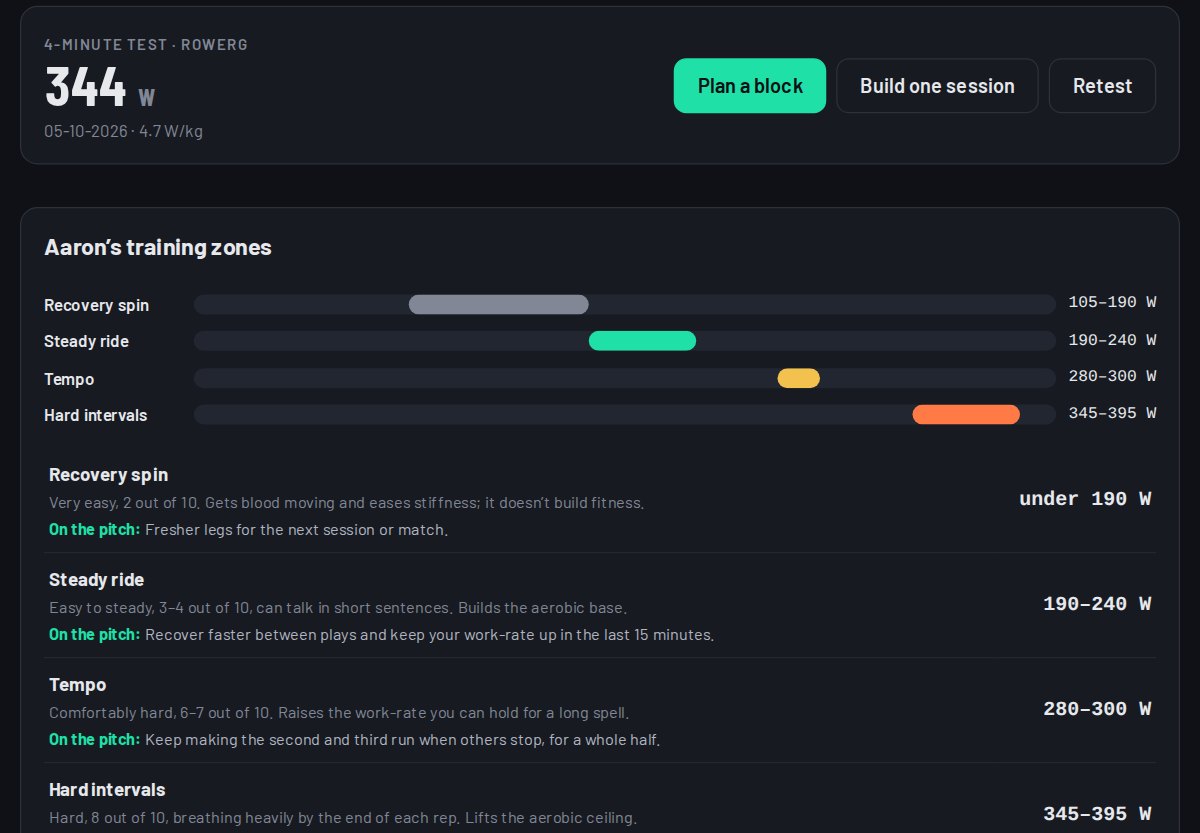
- Add players, then add their machine tests (peak power, 30 s, MAP, critical power and time trials). Each test unlocks more of their profile.
- Their profile shows strengths and weaknesses in plain English, and their own training zones in watts.
- Use New session or New block to build training from those zones, and PDF to share it.
8Strength Block Programmer
A whole squad's gym block, in one pass. In Pro mode only: it's built for qualified S&C coaches.
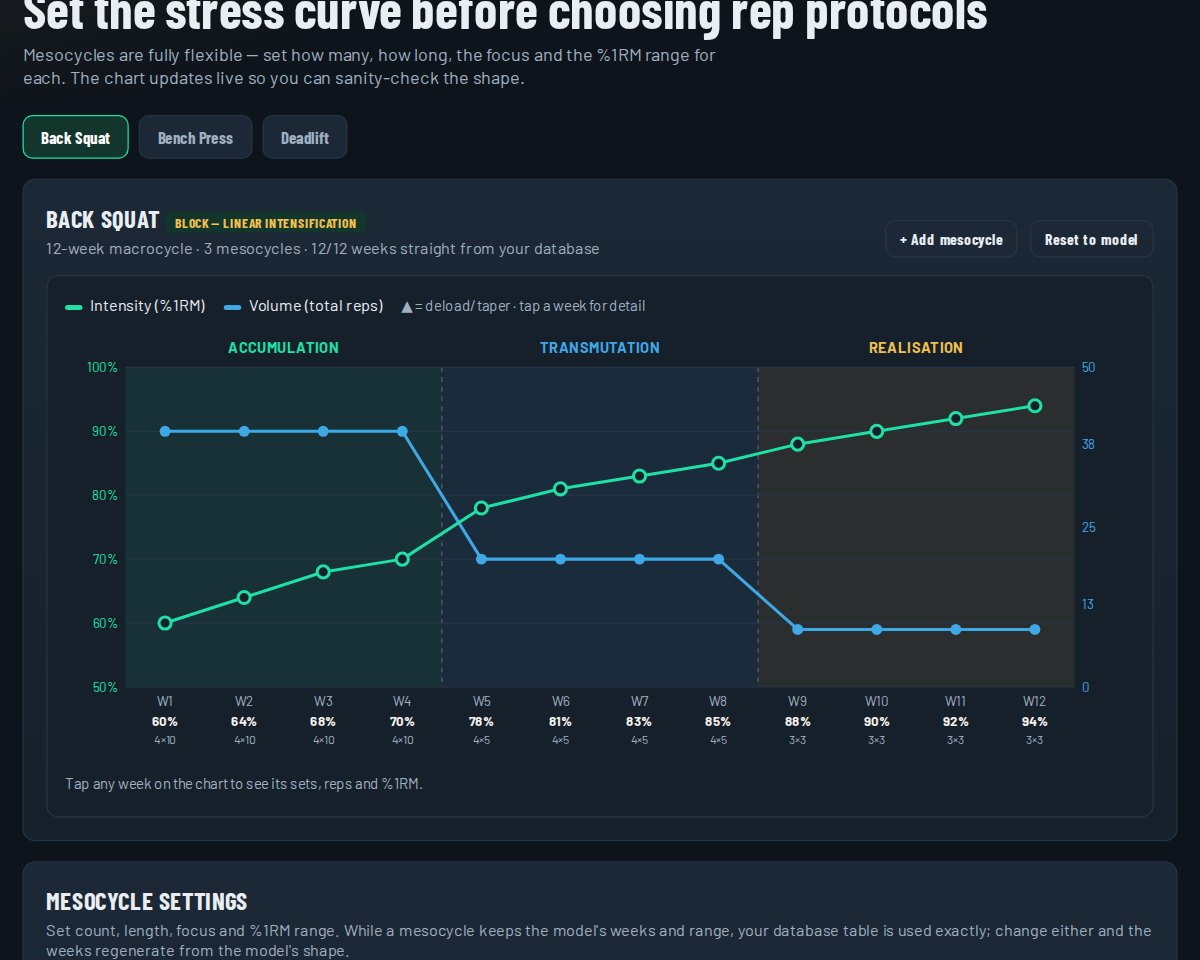
- Pick the squad and two to four main lifts (players need a tested 3RM for each).
- Choose a model for each lift, such as linear, block or undulating. 📖 Model guide explains each one.
- Set your mesocycles and check the shape of intensity and volume on the chart.
- Accept, move or skip the suggested deload weeks.
- Generate squad program: every player gets their own weights, rounded to usable plate jumps.
Save PDF — squad sheet for the gym wall, or Save PDF — a page per player.
9Running Block Builder
From the test results to the cones: every rep set to each player.
The first time you open it
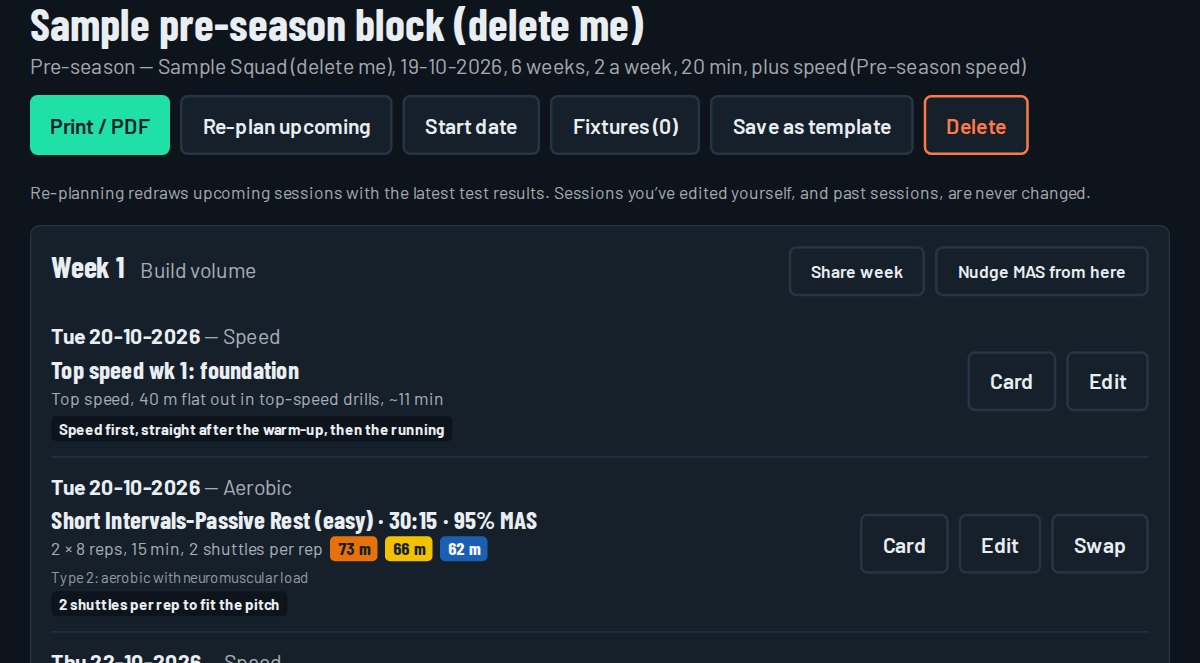
Your squads, players and their aerobic and speed test results come across from Squad Dashboard by themselves, and a sample block is planned for the sample squad so you can see a finished plan. If you test again later, use Settings → Import → Check for new results to bring the new results in.
Plan a block
- Tap Plan, then New block.
- Pick the squad, the type of block (pre-season, in-season, speed, an individual player or return to play), the start date, your training nights and how many minutes you have.
- Add your fixtures: the hard running moves away from match days.
- Every session for the block is drafted, with the players split into groups by fitness and each group's distance worked out.
Set up on your pitch in minutes
This is what saves you time on a training night. Every session card is drawn on your own GAA pitch, and every cone is placed off a line that's already painted: the 13, 20, 45, 65 or halfway. A card reads like "Cone 1 m short of the 20 line at the far end", so there's no measuring tape and no maths at the side of the pitch.
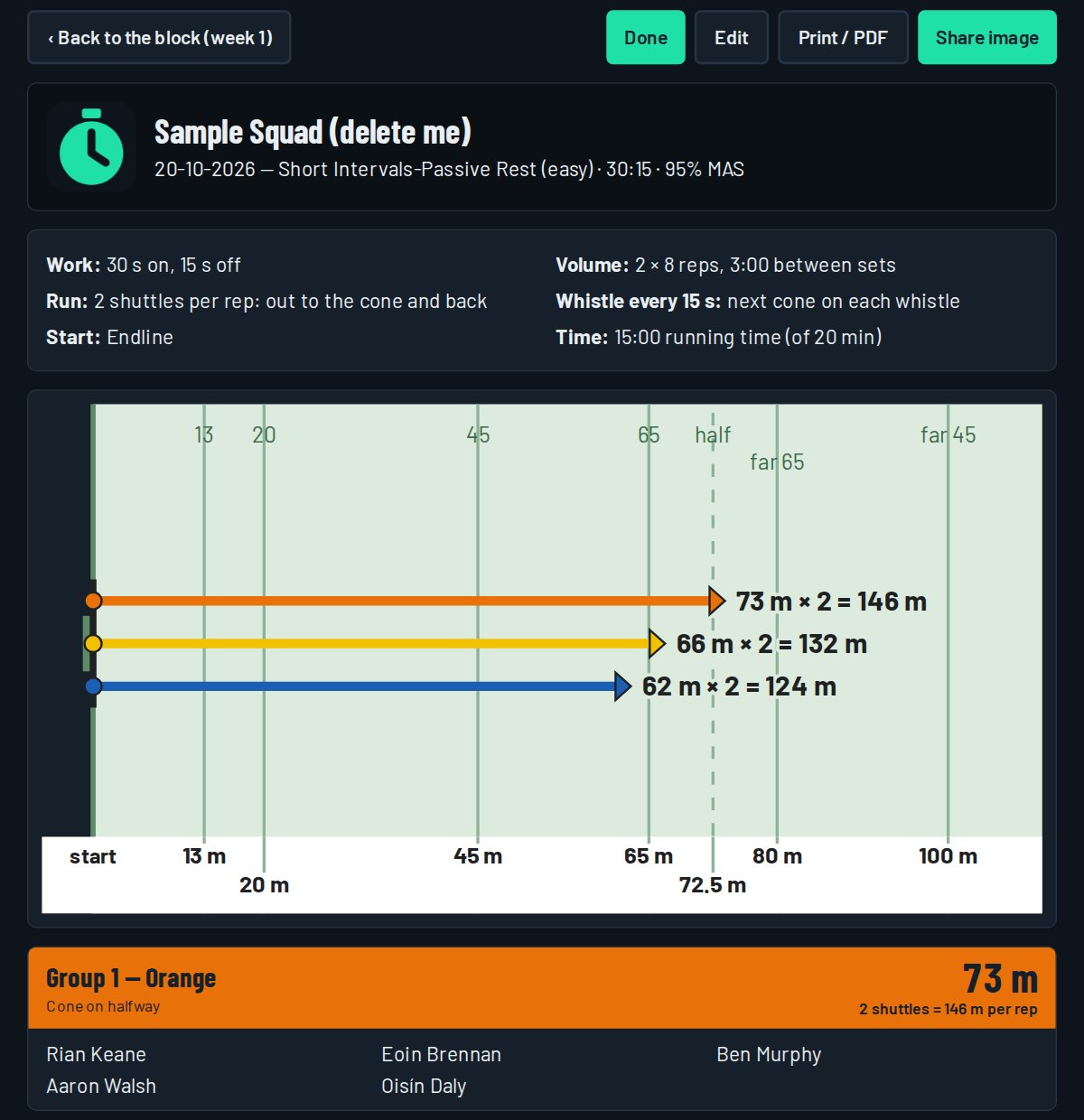
- Add your pitch once in Settings → Pitches: the length and width, and the lines if they're not standard. Add the back pitch or the astro too (an astro has no lines, so pick full, ¾, ½ and so on on the night and cones are measured from your end).
- Give each squad its home pitch and its usual minutes for running (Squads → edit). You can change the pitch or the minutes on the night.
- Put the cones out: one colour per group, at the spot on the card. Each group knows its colour, so players find their own cone.
- Run it: the session fits the minutes you gave it, so it slots in around the hurling or football.
Sessions
- Calendar shows the week. Tap + on a day for a quick one-off session for a squad or one player.
- Open a session to see the groups, distances and the cones on your pitch. Print / PDF or Share image to send it to the players or other coaches.
- Shuttles: long runs that don't fit the pitch can be split into shuttles. The turns are already allowed for, and the card tells you how often to blow the whistle (every 40 seconds, say) so players know when they should reach each cone.
- Tap Done after the session and confirm who was there, so the training load counts.
Speed
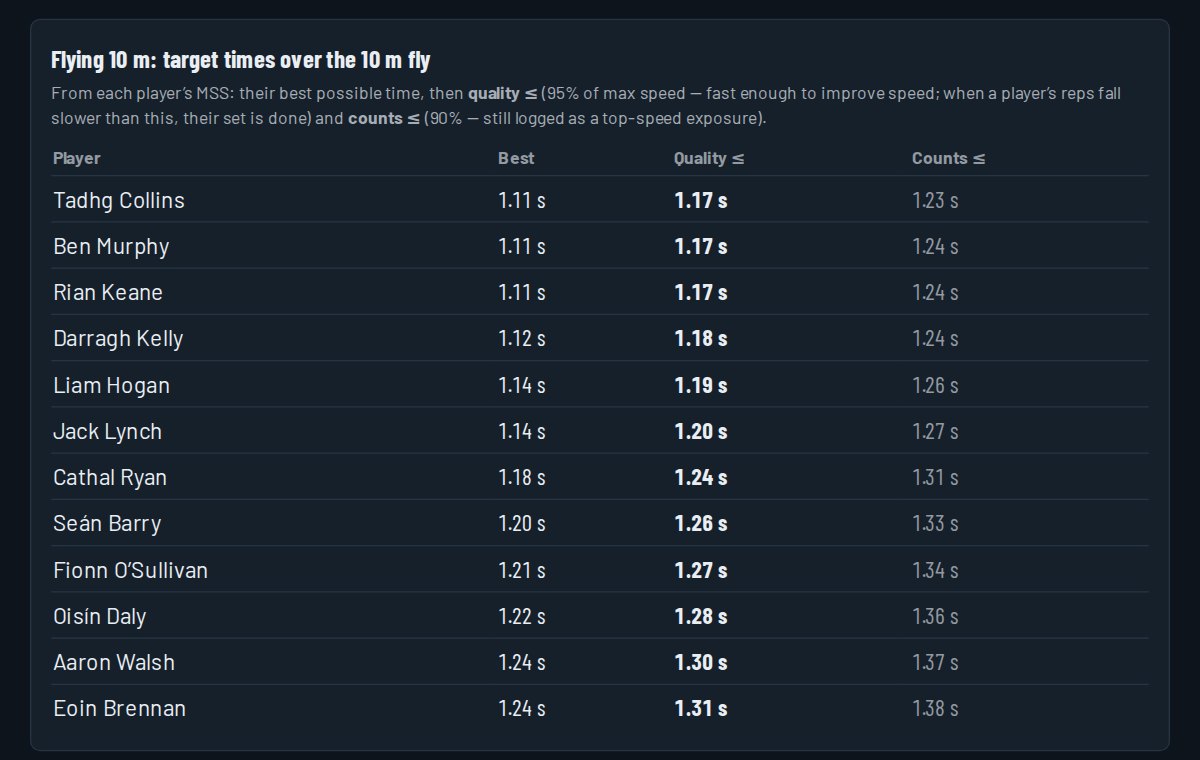
Speed sessions come from the built-in speed programmes (pre-season and in-season). Speed always goes first, straight after the warm-up. Flying sprints show each player's target time from their top speed.
Nudge MAS
If it's been 5–6 weeks or more since a player's last test and they're still making their cones too easily over several sessions, Nudge MAS adds a little to their MAS (0.25 km/h by default) so their distances get longer. Players often make the cones easily early in a block just by pacing well, so that alone isn't a reason to nudge. Tick only the players who have been training regularly. A nudge is an estimate: it never changes the test results in Squad Dashboard or Player Dashboard, and the next real test replaces it.
10Reports and PDFs
Every app turns your results into a clean PDF in one tap.
- For players: the athlete report (Player Dashboard), off-feet results with their zones (OffFeet), and their own gym programme (Strength).
- For the squad: squad comparison and beep-test norms (Squad Dashboard), the squad strength sheet, and running session cards.
- For management: ratings against age standards and change over the season, with your club crest.
11Your data, helpers and help
- Your data is yours. Each coach sees only their own squads. SquadBase stores birth month and year only, never a full date of birth.
- Export or delete everything from the home screen under Your data.
- Helpers (other coaches or parents helping on testing day) can be added by email. They see names only and record results in the Testing Station; you see who entered what.
- Need a hand? Email timcaseyperformance@gmail.com. A screenshot of the problem helps.
See also the Privacy Policy and Terms.